Use Search to identify the recording, inspect the available actions, and save only content you are permitted to download. Check completed files in the destination folder. A playlist entry or a queued task alone is not proof of an offline download.
Find the correct YMusic song
Search with the artist and title together. A result can be a single video, an album-style list, a mix, a cover or a live performance. Check the artist/uploader, title and duration before opening it; several recordings can share the same song name.
Preview the item while you have a working connection. If it is unavailable, try another item and compare the same recording with the original service. That separates a restricted or removed source item from a wider YMusic problem.
The developer’s archived screenshot below shows why a song search can return playlists and mixes alongside individual videos. It depicts a legacy interface, not V4, and its exact build is unknown.
What an artist search can contain
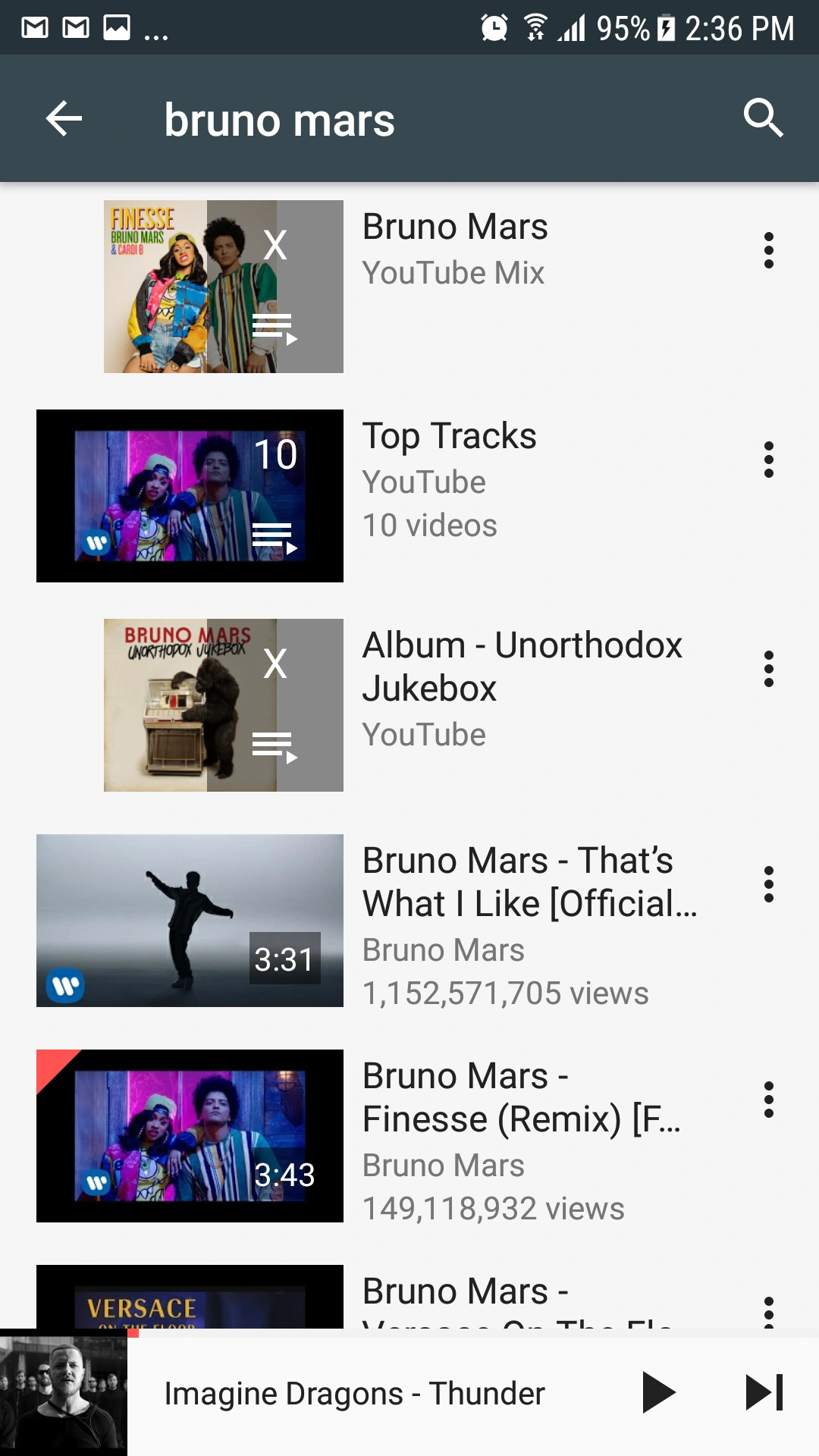
The screen includes a mix, a playlist result and individual videos. A mini player is visible at the bottom. The exact app version is unknown; this is a historical example, not the current release.
View the developer’s referenceCreate a listening list without confusing it with downloads
A saved playlist contains references to items; a playback queue describes what will play next. Give a list a name that describes its purpose and check that each item is the intended recording, particularly when covers and live versions share a title.
The publisher’s V4.0.9 release notes describe Android MediaStore playlist import, playlist backup/restore and creating a local playlist from downloaded items of a YouTube playlist. Those features do not establish that every private V3 playlist or setting transfers automatically.
Keep completed audio files backed up separately from a playlist export. If you are changing app generations, use the V3-to-V4 preservation checklist before uninstalling anything.
Check a YMusic playlist download
Check which download actions the installed build offers for the selected playlist and content. Saving a list does not by itself save its audio. Watch the progress of individual tasks and count the completed files instead of assuming that the entire list finished.
Start with a small selection of items you are allowed to save. Check the output folder, offered format and available storage. A private, unavailable or still-processing item may behave differently from another item in the same list.
If completed items are missing from the Library, investigate the actual files and folder access. Repeating a large transfer before checking the destination can create duplicates and use more data.
MP3, M4A and audio-quality choices
The V4.0.4 release notes describe MP3 downloads as re-encoded, while M4A, WebM and video keep their original streams. Choose from the options actually offered for the item, then test one completed file in the player you plan to use.
An output setting such as 320 kbps does not prove that the source contains more detail. Converting an already compressed stream can create a larger file without recovering missing audio. The MP3, M4A and Opus comparison explains codec, container and compatibility choices.
As a mathematical estimate, four minutes at a constant 128 kbps is about 3.84 decimal MB of encoded audio. Twenty such files are about 76.8 MB before artwork, cache and overhead. The homepage storage calculator lets you change those assumptions; it does not measure YMusic’s actual output.
Check that a file really works offline
Find the completed file in the chosen folder and open it in an appropriate local audio player. Verify that it has a plausible size and duration and is the recording you intended to save.
For a useful offline check, temporarily disconnect from the network and try the local file, then restore your connection. Opening a cached online screen is a different test from opening the saved file. Keep any important media backed up separately from app settings.
If a task fails before a file appears, check the connection, free storage and permitted destination. If it fails during conversion, record the exact format and error. Follow the file and conversion troubleshooting sequence.
Now playing, sleep timer and equalizer controls
The current publisher website describes screen-off playback, a sleep timer and a ten-band equalizer. A timer that intentionally stops playback can resemble a background-playback failure, so check its state when audio stops after a consistent interval.
Compare the current volume and output device with another item before changing sound settings. If locking the screen triggers the problem, follow the background playback checklist.
Use media you have permission to save
Check the recording’s permissions and the service’s terms before saving or sharing it. An app’s download capability is not a licence to copy every track. Your own recordings and files you are authorized to use still need to be handled under the relevant terms.
This guide does not ask for your Google credentials, supply music files or promise access to restricted content. For app data and storage permissions, review the permissions and publisher policy.
Sources & review
- YMusic publisher website
- YMusic 4.0.12 publisher release notes
- YMusic V4 source repository
- Android: shared files and folder access
- Android: shared media collections
- Android: supported media formats
- YouTube terms of service
Sources checked 25 October 2026. Initial content was AI-assisted. Named human review is pending. No on-device YMusic testing is claimed.
Read our editorial and verification policy